
← Help · Meal plan & groceries
Your meal plan
A week of meals built from what you already eat, checked against your plan. Swap any meal you don't want.
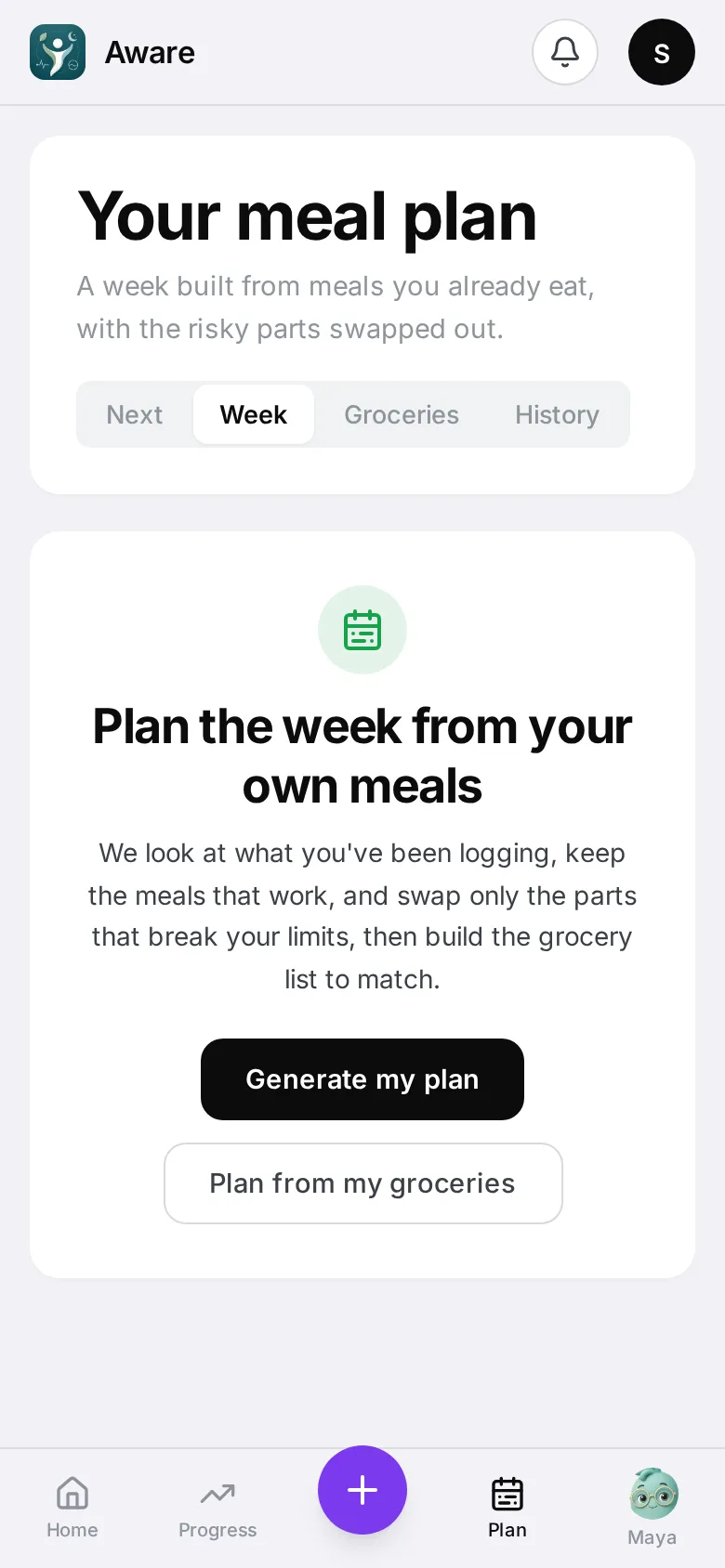
Tap Plan in the bottom bar. It has three tabs: Next, Week and Groceries.
What’s next
Next opens first. It shows your next meal (for example Dinner, around 7:00 PM), how much room you have left today, and meals you already eat that fit — the Best fit first. Each says what you have at home and what you’d need.
- Log it — you ate it; log it now.
- Plan it for 7:00 PM — put it in your plan for that meal.
Under Tomorrow, Plan tomorrow for me plans the whole of tomorrow in one go — breakfast, lunch, dinner and a snack if that’s your habit — from the meals you already eat, the food on your On hand list and dishes that fit your plan. It takes about half a minute, then tells you how the day adds up, for example 1,790 of 1,810 cal.
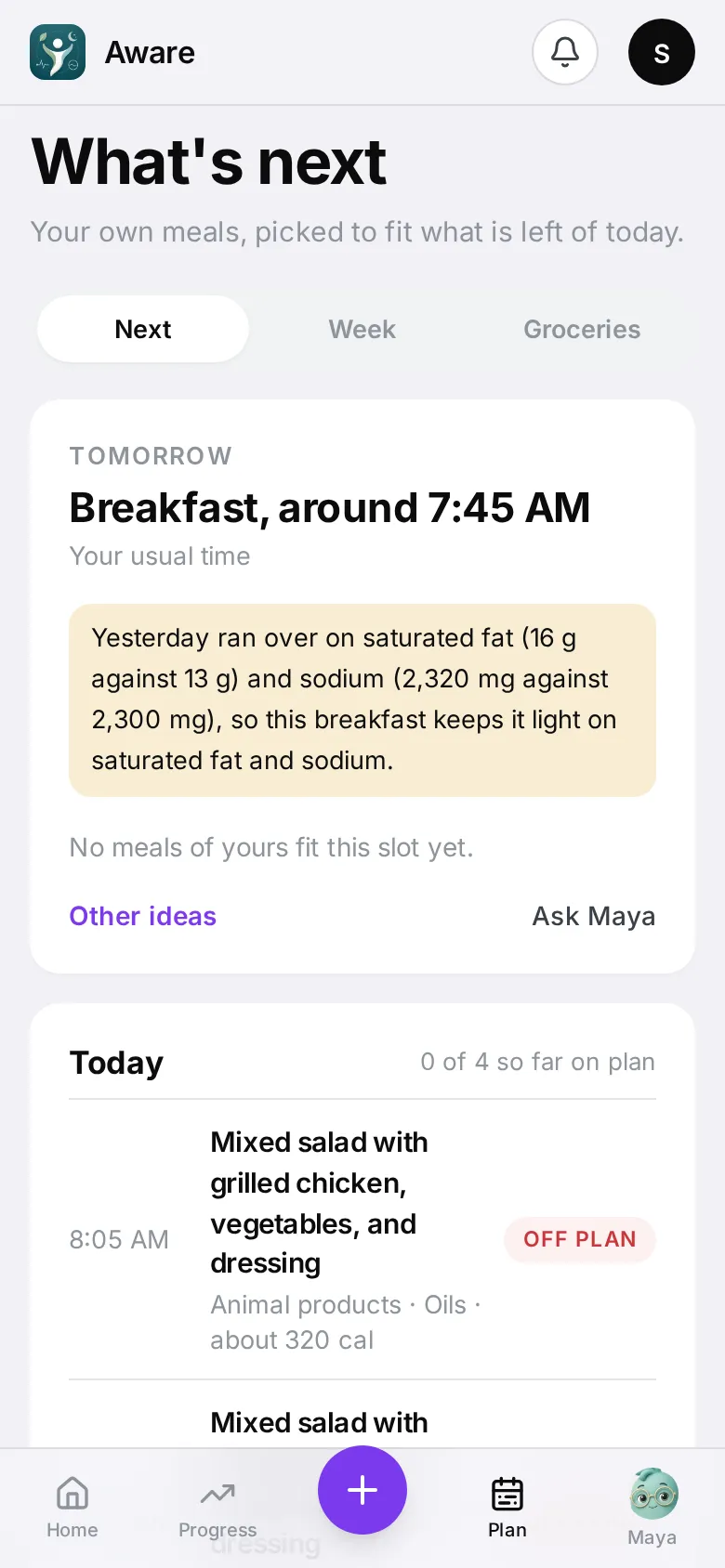
Look up a food
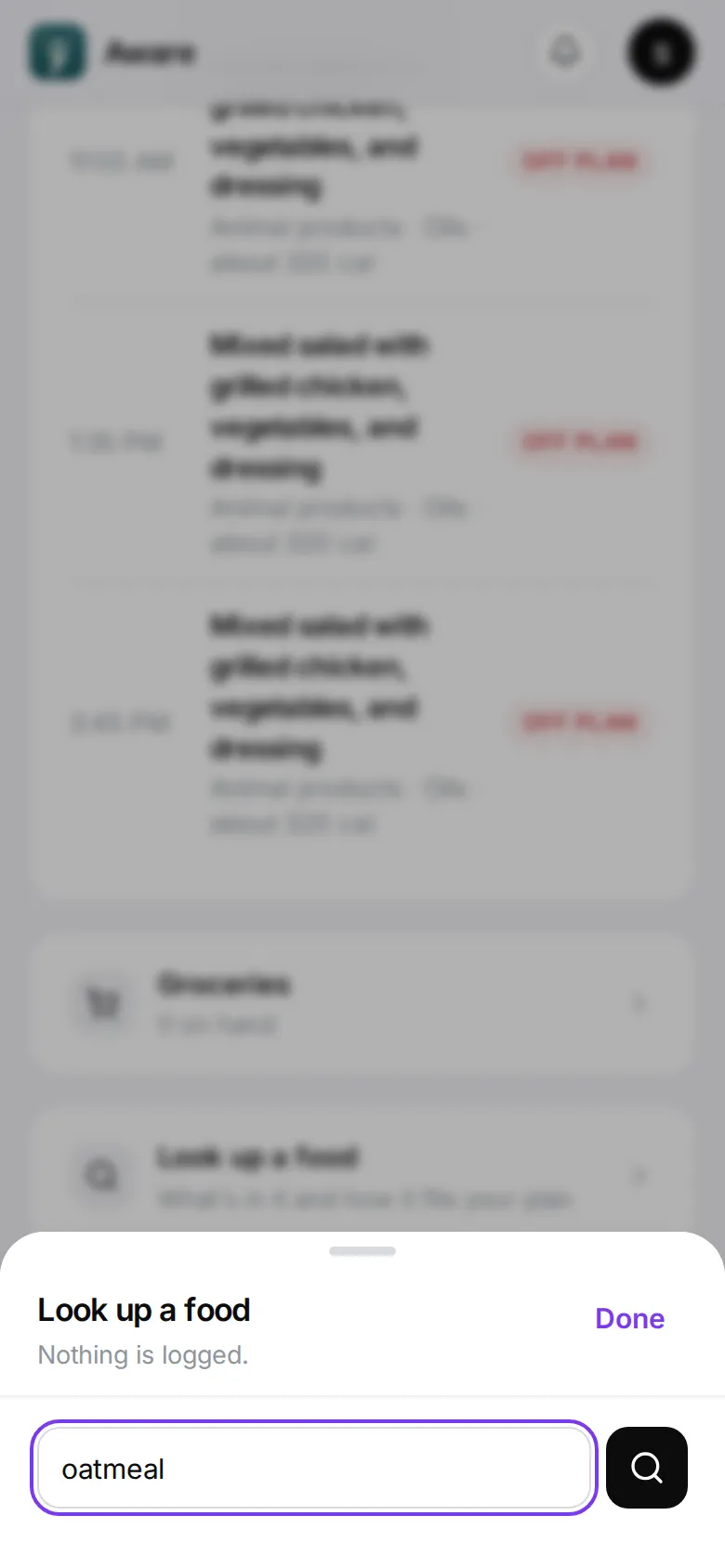
Wondering about a food you haven’t eaten? On Next, tap Look up a food, type its name and pick it from the list. Nothing is logged.
You’ll see:
- For your plan — whether your plan allows it, limits it or leaves it out, and why.
- What it tends to do to your blood lipids and blood sugar, and a swap if there’s a better choice.
- Per 100 g — its calories and nutrients. These are per 100 grams, not per serving.
- The studies behind it, when there are some.
You can also get there while logging: in Type, tap Just checking a food? Look it up without logging.
Studies
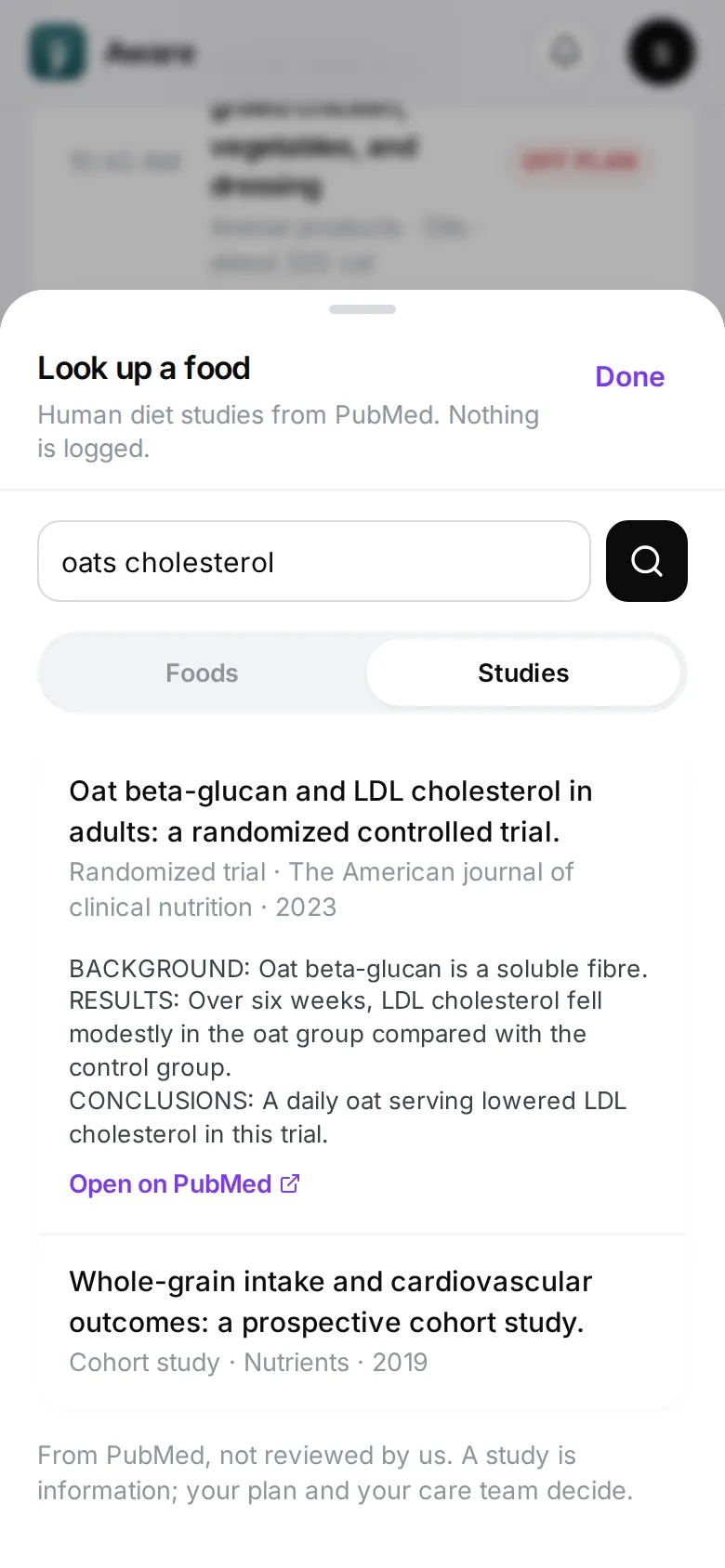
Under the search box, switch from Foods to Studies to search PubMed, the public library of medical research, for human studies about food. Type a food or a question — “oats cholesterol”, “sodium blood pressure” — and tap Search.
Each result shows the paper’s title, what kind of study it is (a randomized trial, a review, a cohort study), the journal and the year. Tap a row to read the summary, then Open on PubMed to read the paper itself.
On a food’s card, Studies about this food runs this search for that food.
These are published studies, not reviewed by us. A study is information; your plan and your care team decide. You can also ask Maya what studies say about a food — see Talk to Maya.
Make a plan
On Week, tap Generate my plan. The week is built in the background (Building your plan…) and appears within a minute or two; you can leave the tab and come back.
The plan is built from meals you’ve logged, adjusted so every day fits your plan and your eating pattern (for example vegetarian), and planned to your daily calories — every meal carries its calories, so a day is never a guess. The more you’ve logged, the more it looks like your food. If you’ve saved groceries, it uses what you have — see Groceries and what’s on hand. Dishes you haven’t logged come from a checked list of dishes that fit your plan.
If one of your limits (for example carbs) means a day can’t reach your calorie target without going over it, the plan aims at the most your limits allow and says so under This day against your limits: “your carbs limit allows about 1,810 cal a day, under your 2,370 cal target”. That is your limit doing its job; if it looks wrong for you, talk it over with your care team.
Read the plan
Tap a day to see its meals. Some are marked:
- Swapped — the app changed one of your meals to fit your plan.
- Your swap — you changed it.
- Added — you added it.
- New idea — a dish you haven’t logged before.
Evening appears on nights when you tend to snack after dinner. It is one of your own snacks that fits your plan, and it names the foods it’s there to replace, so you have something ready if you want to eat later.
If a day is short on protein, the plan adds more of foods you already eat first.
This day against your limits shows how the day adds up.
Change a meal
- Swap this — the app picks the next-best meal for that slot.
- Ask Maya — ask for something specific (“something quick with lentils”). Maya can also plan a whole day (“plan tomorrow, lighter dinner”), rebuild the week from your groceries, add a meal, add meals to several days at once, or undo a swap. She’ll show you exactly what she’s about to change and ask you to Approve first, and afterwards tells you how the day adds up against your calories.
Start over
Regenerate builds a new week in the background. Delete plan removes the plan and its grocery list (you’ll be asked to confirm). You have to wait a minute between new plans.
History
History is a calendar of past days: Clean day, Mixed or Heavy. Tap a day to open it.